XSIBackup-App Blog
Backup and replicate Linux files, databases and ©VMWare ©ESXi VMs
Brought to you by:
danjgf

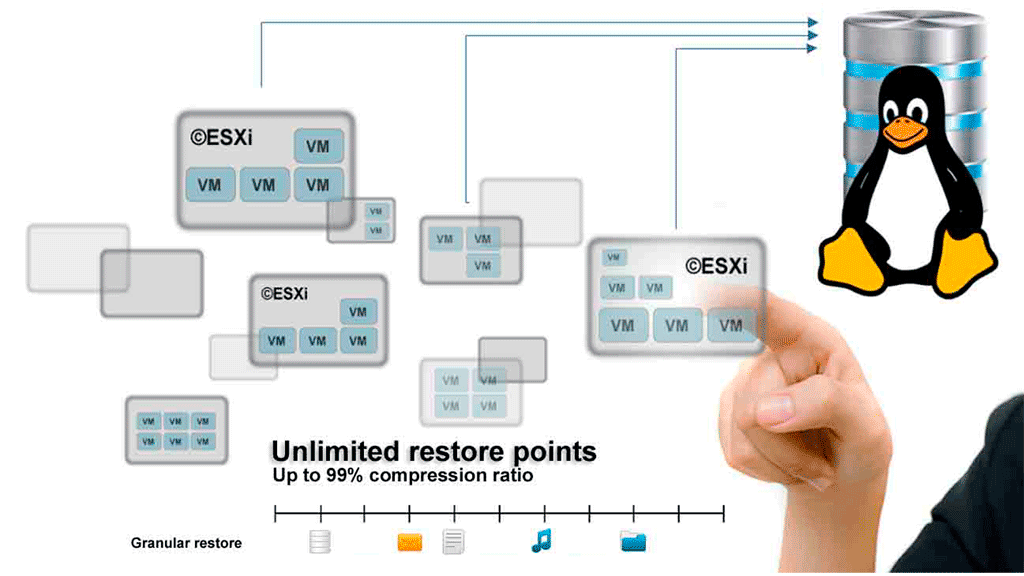
©XSIBackup was originally created as an ©ESXi backup tool. We developed a block level deduplication engine that works over regular file systems and a delta algorithm based on the SHA1 hash. Everything is optimized to achieve high speed in backing up data as couldn't be otherwise when it's main duty is to backup virtual disks.
We have now enabled the latent Linux backup capabilities of ©XSIBackup, and so we have done so while preparing the launch of ©XSIBackup-App 1.0.1.0.
©XSIBackup-App can connect to the root of any Linux host and backup or replicate it's data somewhere else locally or over IP. If what you want is to backup data with de-duplication and achieve a near 99% compression ratio, then ©XSIBackup-App is your choice. Also if the files to replicate are very big ©XSIBackup's algorithm will work better than other tools.
You can connect to a host and backup its data by choosing some folder, file or list of folders via the File(list-of-dirs.txt) source argument method. Obviously, any open files will be skipped. You can use the built-in --prev-script and --post-script arguments to run some script in the remote host.
This allows to do virtually anything, from taking an LVM2 snapshot and mounting some volume to run some backup server command that will generate a database dump per instance. The post script can take care to return whatever remote service to its original state.
Now let's see one case in which we backup a big MySQL database with deduplication in a remote server over IP.
Backing up MariaDB/MySQL databases.
When your database is big, in the order of hundreds of gigabytes, as it's rather common in well known enterprise software like SAP, then you will start to have trouble by using mere scripts, not only because the dump will take time to complete, but because storing a few restore points will take all your backup space rapidly. Compressing will take time and it won't be enough most of the times.
In cases like the above is when ©XSIBackup-App will come in handy, as it can deduplicate your data at block level to compress it up to 99%, depending on the amount of new daily data that you generate each day.
XSIFS FUSE file system, which comes pre-installed in the ©XSIBackup-App appliance will allow you to mount each restore point to extract individual files very easily.
Backing some MySQL database up is simple, you just have to use the mysqldump command to generate a DB dump with all the data as INSERT SQL sentences. We provide two sample scripts to dump MySQL/MariaDB databases with or without compression in the etc/jobs dir.
With compression
( mysqldump --host localhost --skip-lock-tables --single-transaction --flush-logs --quick --add-drop-table -uroot 'Test-DB' | gzip -9 > /home/backup/sqldumps/Test-DB.sql.gz ) && echo "The database dump succeeded" || echo "The database dump failed"
Without compression
mysqldump --host localhost --skip-lock-tables --single-transaction --flush-logs --quick --add-drop-table -uroot 'Test-DB' > /home/backup/sqldumps/Test-DB.sql
You can place any of the above scripts inside the etc/scripts directory and invoke them via the --prev-script argument. The scripts are copied to the backup source server and executed there, thus you can easily try them out in the source server's command line to make sure they work before using them.
Of course you will have to chage the name of the database and target to suit your needs. You will be using the target dir in the backup command in a while.
As you will have noticed there isn't any authentication info in the mysqldump commands above. You can set implicit authentication by using the [Client] section in the my.cnf file.
[client]
user=root
password=your_password
You will also be wondering whether using compression will allow to achieve a good block deduplication compression ratio. The answer is YES, as gzip produces deterministic compressed results, namely: the compressed data will also yield the same string of bytes, except for some small variable data like dates. You will usually have to count with one or two MB of data that will change on every backup cycle even if the data remains the same, still it's worth to compress. Even if you don't compress the data there will still be headers containing the creation date in the SQL dump anyway.
On the other side, if you use compression on the data source, you will not need it in the backup job and it will run faster.
Backing the data up.
Backing data up with ©XSIBackup-App is rather simple: you need to set the source and the target for your backup. As the appliance can connect to multiple servers you will need to add them first, as well as any other backend server you want to store your backups to.
The link between the source servers, namely: the ones that contain the data to be backed up, the back end servers and the appliance is made by means of RSA keys. Once the source and target servers are added to the appliance scheme you will be able to use them.
Adding a source server.
Linking to a source of backup data server is really easy, you just have to use the --add-host command and enter the password. You will
normally use the root user, you can use any other user name though.
xsibackup --add-host root@a.b.c.d:22
The above command is self explanatory, you have the user name, the @ sign followed by an IPv4 a colon and the port number which is usually 22 for the SSH service. Confirm and the appliance will be linked to the a.b.c.d. server by its RSA key.
Adding a backend server.
You can store your backups locally to any kind of device: VHD, RAW disk, NFS, SSHFS, Samba, etc... that can appear as local to the Linux file system. Nonetheless in this case we are going to use a remote IP target which will be bound to the appliance by its RSA key in a similar way as we did before for the source server. Instead of --add-host, we will use the --add-key argument.
xsibackup --add-key root@e.f.g.h:22
Enter the remote server's root password when prompted to and the e.f.g.h backend backup server will be bound to the appliance.
Building the backup job.
Now that you have linked the appliance to the source and target servers you can reference those IPs in the backup jobs. In this case we want to
grab the remote folder /home/backup/sqldumps at server a.b.c.d and backup its contents, that is the Test-DB.sql.gz backup tar ball to some backup
repository at e.f.g.h
xsibackup --backup /home/backup/sqldumps "root@e.f.g.h:22:/home/backup/repo01" \
--backup-host="root@a.b.c.d:22" --prev-script="/home/root/.xsi/etc/jobs/scripts/mysqldump-comp.sh" --compression=no
Arguments explained.
1/ The first argument is the action --backup. This is always a deduplicated backup to the location pointed to in the target argument.
2/ The source argument. This is what we are backing up at the source --backup-host. In this case it is a folder.
3/ The target argument. This is where we are copying the data to. In this case it is a remote location at root@e.f.g.h:22:/home/backup/repo01.
These first 3 arguments are fixed in position, that is: you always pass the action a source and then a target. The rest of the arguments are set from the 4th argument onwards.
4/ In fourth position we have the --backup-host argument, which tells ©XSIBackup which server the data to backup is sitting at.
5/ This is the "Previous Script" argument (--prev-script), which points at a script we want to run before running the backup job. In this case the script will dump the Test-DB database to the /home/backup/sqldumps directory at the source host. Then the backup job will backup the resulting dump to a deduplicated repository at root@e.f.g.h:22:/home/backup/repo01
6/ Compression off, as we have already compressed the source data.

