Kage Studio Animation Software Wiki
A simple multi-platfom 2D Animation Software for all ages!
Status: Beta
Brought to you by:
creek23

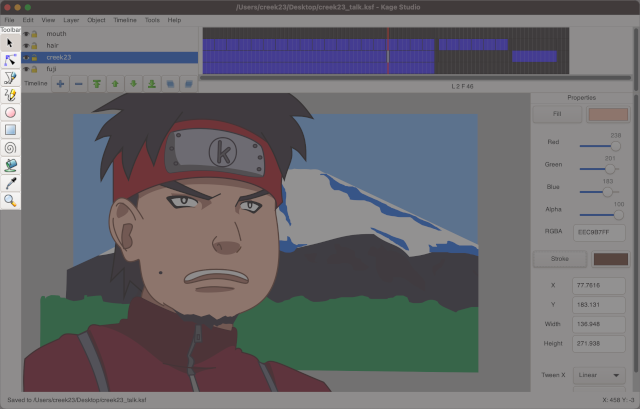
Here are the currently implemented tools as of v0.8
 Use Select Tool to select the shape you want to move around, resize, rotate, and/or change color.
Shortcut Key is S
 Use Node Tool to intricately deform a selected shape to your heart's content. Watch this video to see how Node Tool was used to illustrate a frame from Kimi no Na wa.
Shortcut Key is A for Anchor
 Use Poly Tool to create shape more complicated than Ovals or Rectangles
Shortcut Key is P
 Use Pencil Tool to quickly sketch your idea on Stage. Then you can use Poly Tool and Node Tool to make a cleaner illustration.
Shortcut Key is B (like Brush) because P is used for Poly
 Use Oval Tool to easily create Oval-like shapes like fruits, wheels, etc. Then use Node Tool (press A) or Select Tool (press S) to get the final shape you want.
Shortcut Key is O
 Use Rectangle Tool to easily create Rectangle-like shapes like house, windows, etc. Then use Node Tool (press A) or Select Tool (press S) to get the final shape you have in mind.
Shortcut Key is R
 Use Stroke Tool to apply a pre-selected Stroke Color and Thickness. Use Eyedrop Tool (press i) to copy an existing Stroke Color/Thickness to buffer.
Shortcut Key is K because S is taken
 Use Fill Tool to apply a pre-selected Fill Color. Use Eyedrop Tool (press i) to copy an existing Fill Color to buffer.
Shortcut Key is G because I'm reserving F for something else
 Use Eyedrop Tool to copy a Shape's Fill Color on Stage to buffer.
Shortcut Key is i because it sounds like Eye :)
 Use Zoom Tool to zoom in and out of Stage -- Left-Click Zooms-In, and Right-Click Zooms-Out. Alternatively, you can use your mouse wheel to zoom In and Out -- no need to press Z if using mouse wheel.
Shortcut Key is Z

Anonymous


