ChessCam Wiki
A virtual DGT board using optical detection
Status: Beta
Brought to you by:
olivier_herau


As off now you need at least a chessbase project supporting DGT boards to be installed with the file "dgtebdll.dll" included.
In next versions a third-party version of this dll will be provided
In order to have the ChessCam working
1-Install the software named "com0com" available at this adress : http://sourceforge.net/projects/com0com
this will install a driver allowing to create new virtual COM ports
2-Create a new virtual port pair with unused names (ex: COM43-COM4), check options "use Ports class" and "emulate baud rate"
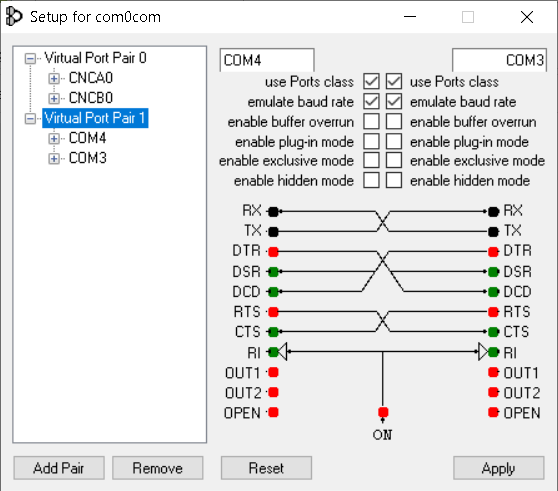
3-Install RabbitConnect plugin. For Arena and old chessbase products, prefer the 32bit version. Both 32 and 64bit versions are available at this address : https://sourceforge.net/p/chesscam/screenshot/DGT%20RabbitPlugin%20setup-9910.PNG
4-Launch RabbitConnect or the DGT setup in your chess GUI, and select the second serial port of the pair (ex: COM4)

3-Unzip and install ChessCam anywhere on your computer
3-Launch ChessCam and choose the first serial port COM of the pair (ex:COM3). Communications between ChessCam and the RabbitPlugin should start to be logged in the bottom right frame of the ChessCam main form.
4-Launch the ChessBase product (Fritz,Shredder,etc.) and go to the options and check "DGT Board"
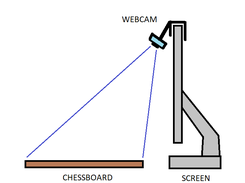
The camera must be as close as possible to the vertical of the board.
You will have better results by using the following tips:
1-Set a good indirect lighting for the board
2-Use a contrasted chessmen/board combo. A good standard set is a green rool-up vynil chess board with staunton B&W plastic tournament pieces.
3-Prefer well known brands for the webcam. No-name devices might not work properly. Logitec devices are a good choice as they support a lot of standard resolutions and pixel formats.
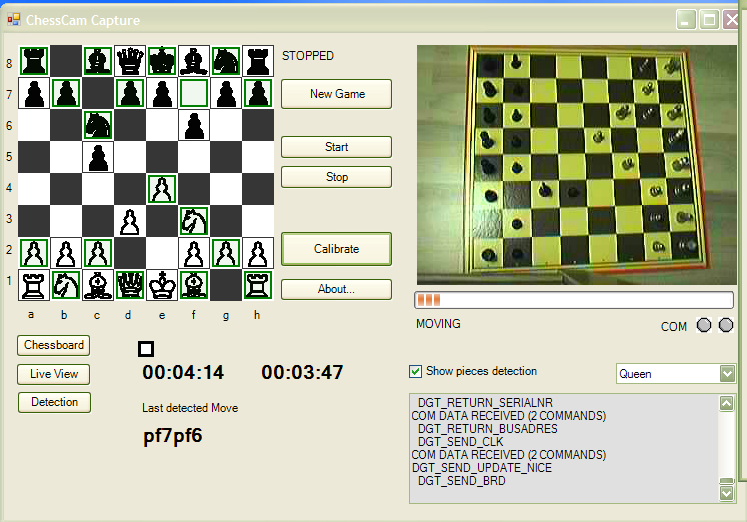
The main form displays several informations:
- Top left : the chessboard, the live live view, or the detections on the board
- Top right : the camera view after geometry correction
- Bottom left : Side to move, clocks for white/black, and the last detected move
- Bottom right : motion level, serial port COM in/out, and serial port communications
Buttons:
- New game: set up the board for a new game
- Start: start the detection
- Stop: stop the detection
- Calibrate : give access to the Calibration Form
- About: about this software
- Chessboard/Live View/Detection : switch the mode of the top left display
- Show detection piece: if checked, the pieces detected are marked on the display
- Promote to: every pawn on the 1rst/8th rank is automatically promoted to the selected piece
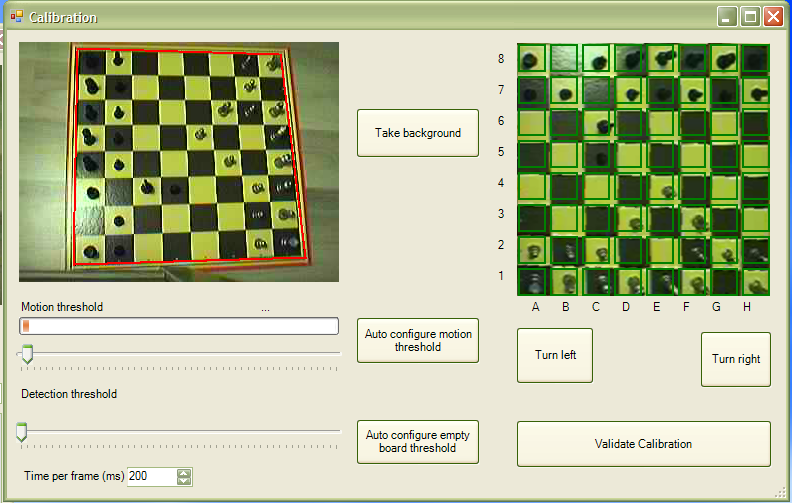
The calibration form allow some tuning to get proper detection results during a game.
Here is a description of the form and possible settings:
- Top left : the raw camera view. The image is clickable to define the position of each corner of the board.
- Top right : the camera view after geometry correction. Detection zones are represented by a green frame for each square of the board
Buttons:
- Change resolution: if the camera does not show any output you can play around with the resolution settings
- Take background: take a picture of the empty board so the chessmen can be detected
- Turn left/right: turn the board by 90° left or right for proper orientation
- Auto configure motion threshold: watch a few moves and set a threshold accordingly
- Auto configure empty board threshold: detect small lighting variation and set a threshold accordingly
- Validate: save settings and close the window
Here is the recommanded procedure to perform the calibration :
1-Put the empty board on a table with proper ambiant indirect lighting
2-Setup the webcam/capture device above the board on a steady frame or mount point (ex: an architect lamp)
3-Launch ChessCam and go to the calibration form
4-Click on "Take Background"
5-Click on each corner of the board on the top left picture. The top right picture should be updated accordingly
6-Click on "Autoconfigure empty board threshold"
7-Put the pieces on the board
8-Turn left/right until the top right picture displays the board with whites at the bottom
9-Click on "Autoconfigure motion threshold" and play some moves for a few seconds
10-Click on validate calibration
Tips: The detection is more CPU consuming on big resolutions. Lower the resoltution as much as possible to have a decent capture with the Live View. Then try to rise the processing size until the capture shows no significant improvement. Then Turn left/right and take a snapshot of the background with the "Take Background" button
